How to Import a Final Draft, Fountain or PDF Script


By Muhammad Wisal and Muhammad Ali / 6 min read
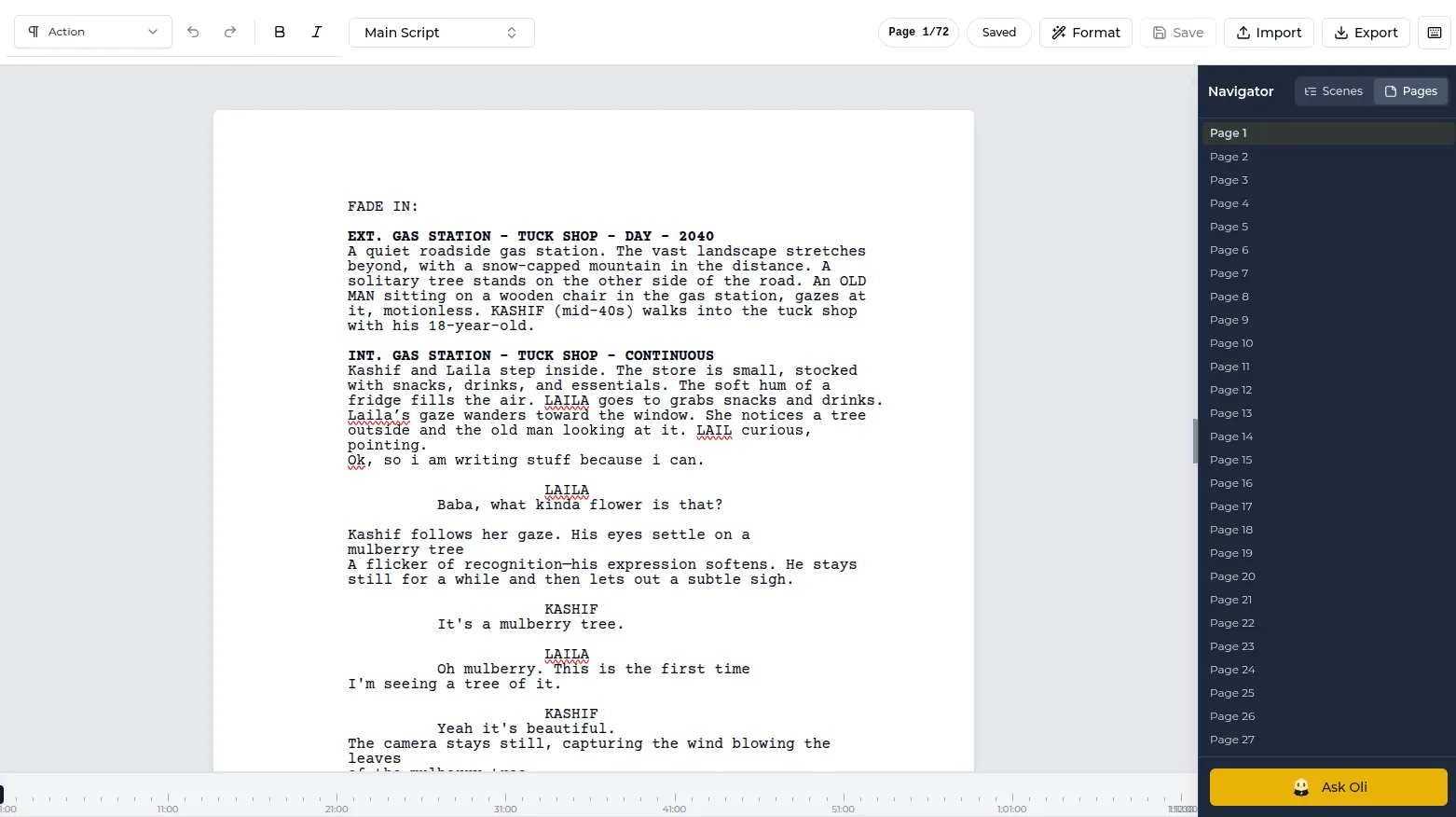
To import a Final Draft, Fountain or PDF script, export or save the script from its current app in the cleanest format you can (FDX from Final Draft, a .fountain text file, or a text-based PDF), import it into the new tool, then check every element type, the title page and the page count against the original. FDX and Fountain carry the script's structure. A PDF only carries the look of the page, so it needs the most checking.
Which script file formats can you import?
Most screenwriting tools read three kinds of file: a native format from another app, Fountain, and PDF. They differ in how much information they keep about each line of the script.
| Format | What it is | What usually carries over | What to check |
|---|---|---|---|
| Final Draft (.fdx) | Final Draft's file format, stored as XML that labels each paragraph with its element type | Scene headings, action, characters, dialogue, parentheticals, transitions, title page | Revision marks, scene numbers, script notes, dual dialogue, custom elements |
| Fountain (.fountain) | Plain text with simple rules that tell software what each line is | All standard elements, title page fields, notes and sections if the app supports them | Lines the importer guessed wrong, such as an all-caps action line read as a character |
| Celtx | Files exported from Celtx | Standard screenplay elements | Anything specific to Celtx projects, such as breakdown data, which usually stays behind |
| PDF (.pdf) | A picture of the printed page with text on it | The words, with element types inferred from indentation and capitals | Every element, page breaks, (MORE) and (CONT'D) markers, headers and page numbers mixed into the text |
If you have a choice, import FDX or Fountain over PDF. A scanned PDF (a photo of paper pages) has no real text layer, so it has to go through OCR first and will need line-by-line cleanup.
How do you prepare a script before importing it?
Prepare the file in the app it came from, while you can still compare against the original. A few minutes here saves an hour of cleanup.
- Save a copy of the original. Keep the source file and a PDF of it untouched. You will compare against this PDF.
- Note the page count and scene count. Write down the total pages and the number of the last scene.
- Decide what you need to keep. Revision colors, locked scene numbers and notes may or may not survive the move. If you are mid-production with locked pages, check how your new tool handles them before switching.
- Clean up odd formatting. Remove manual page breaks, text boxes and lines typed in the wrong element (for example, a character name typed as action).
- Export in the best format. From Final Draft, keep the .fdx file. From other apps, look for an FDX or Fountain export before falling back to PDF.
What does a Fountain file look like?
A Fountain file is a screenplay written in plain text, where the layout of each line tells the software what it is. Scene headings start with INT. or EXT., character names are in capitals on their own line, and dialogue sits directly under the name. Here is a short sample:
Title: Low Tide
Author: Petra HalloranEXT. BOAT RAMP - NIGHT
WENDELL (60s) hauls an empty crab pot out of the water. He checks the latch. Someone opened it.
WENDELL
(to himself)
Third one this week.> CUT TO:
Fountain also has "forced" markers for lines that break the usual pattern. A period before a line forces a scene heading (useful for headings like ".FLASHBACK"), an exclamation mark forces action, an @ forces a character name, and a > forces a transition. Notes go inside double square brackets. These markers explain most import surprises: if an action line is written in all capitals, the importer may read it as a character name unless it is forced.
How do you check a script after importing?
Check the import against your original PDF, element by element, before you write anything new in the file. The fastest method is to go through it in this order:
- Page count. Compare total pages. A difference of a page or two can come from font or margin differences. A bigger gap usually means an element was misread across the whole script.
- Scene headings. Scroll the scene list. Every INT. and EXT. line should be a heading, and nothing else should be.
- Characters and dialogue. Spot-check five or six scenes. Look for dialogue imported as action and character cues imported as action in all caps.
- Parentheticals and transitions. These are the elements PDF imports most often get wrong.
- Title page. Check title, writer credit, contact details and draft date.
- Special cases. Dual dialogue, lyrics, intercuts, text messages on screen and montages. Fix them by hand where needed.
- Character list. Look for duplicates caused by typos or extensions, such as "ROSALIND" and "ROSALIND (V.O.)" listed as two people, or "ROSALIND" and "ROSALND".
Once it matches, save the result as a new draft and treat it as the working copy from then on.
What are common import problems and fixes?
| Problem | Likely cause | Fix |
|---|---|---|
| Dialogue appears as action | PDF indentation not recognized | Re-tag the lines as dialogue, or re-import from FDX or Fountain |
| Page numbers and "(MORE)" inside the text | PDF headers and page-break markers read as script lines | Delete them; the editor adds its own when it paginates |
| Extra characters in the character list | Typos or inconsistent names in the original | Fix the spelling in the script so one name is used everywhere |
| Scene numbers changed | The new tool renumbered scenes | Before production this is fine. After lock, check how the tool handles locked numbers |
| Accented letters or quotes look wrong | Text encoding | Re-export the source as UTF-8 text or FDX |
For a refresher on how each element should look, see how to format a screenplay.
How to import a script in Lowerated
Lowerated's Scriptwriter imports Final Draft, Fountain, Celtx and PDF files, and formats the script to industry standard as you keep writing.
- Import the file. Choose your Final Draft, Fountain, Celtx or PDF script and import it into a project.
- Check it against the original. Use the checklist above: page count, headings, dialogue, parentheticals, title page and character names.
- Keep writing. New lines are formatted as you type. Drafts and revisions, with revision colors, are kept with the script.
- Use the script for planning. Tag cast, props and locations so the script can feed a breakdown, and check the characters page built from the script.
- Export a clean PDF when you need to send pages.
The recording shows a scene being written in the editor, with formatting applied as you type.
The clip shows how drafts and revisions of a script are kept in Lowerated.
See the Scriptwriter page for the full feature list. If you are moving away from desktop software, Final Draft alternatives compares the options. After import, script tagging is usually the next step for a production.
FAQ
Will my revision colors survive the import?
It depends on both apps. Check a revised page right after import. If colors matter for a script in production, finish the current revision set before switching tools. See revision colors explained.
Why does my imported script have a different page count?
Small differences come from fonts, margins and how each app breaks dialogue across pages. Large differences usually mean elements were misread, most often from a PDF.
Can I import a scanned PDF?
Only after running OCR to turn the images into text, and even then expect to fix many lines by hand. Ask the writer for an FDX or Fountain file if one exists.
Is Fountain a good format for archiving scripts?
Many writers like it for that, because it is plain text that any text editor can open years later.
Key takeaways
- Import FDX or Fountain when you can. PDF is the last resort.
- Save the original file and a PDF of it to compare against.
- Check page count, headings, dialogue, parentheticals, title page and character names after every import.
- Be careful switching tools mid-production if you rely on locked pages and revision colors.
- Save the checked import as a new draft and work from that.